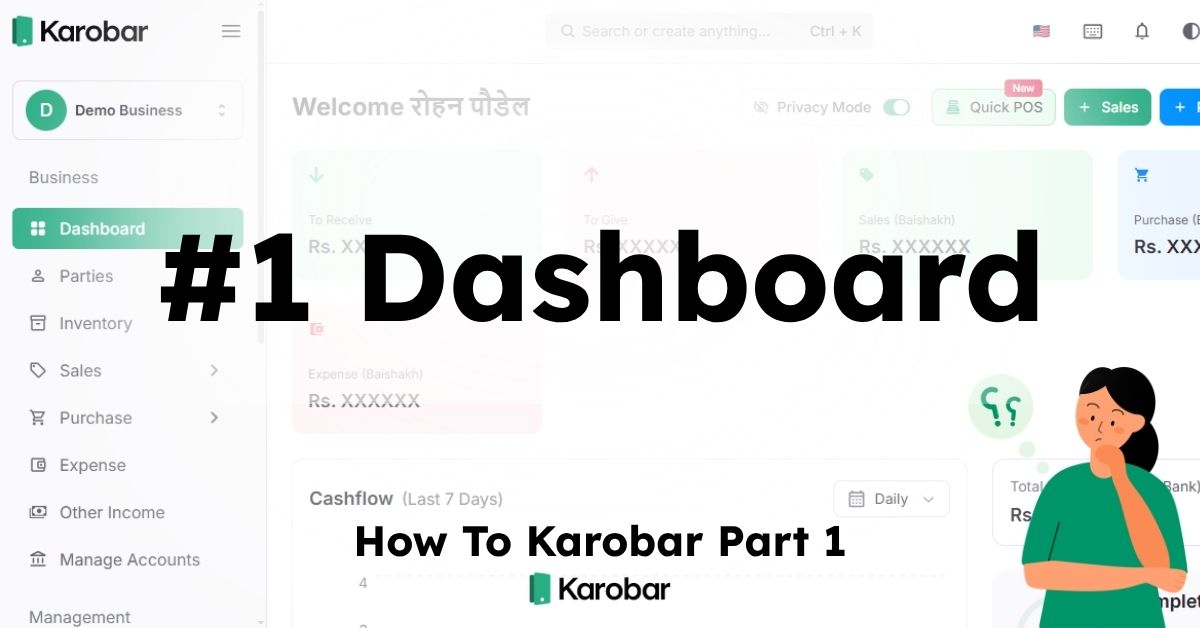
Karobar Dashboard — Noob Level Guide (Step-by-Step)
This is the first screen you see after opening Karobar. Think of it as your business control room. Everything important is summarized here.
🧭 1. Top Left — Business Name
Demo Business
This shows:
Which business you're working in
If you have multiple businesses, you switch here
👉 Noob tip: Always confirm you're in the correct business before entering sales.
📊 2. Left Menu — Main Navigation
This is where all features live:
Business
Dashboard (current screen)
Parties (customers/suppliers)
Inventory (products)
Sales
Record sales
Create invoices
Check sales history
Purchase
Record purchases
Supplier bills
Expense
Shop rent
Electricity
Salary
Reports
Profit & Loss
Stock report
Party report
👉 Noob rule:
Selling? → go Sales
Buying? → go Purchase
Expenses? → go Expense
⚡ 3. Quick Actions (Fast Buttons)
You see:
New Quick POS
Sales
Purchase
More
These are shortcuts.
Use:
Quick POS → fast billing
Sales → new sale entry
Purchase → add stock
💰 4. Money Summary (Very Important)
You see:
To Receive → Rs. 0
Customers who haven't paid you
To Give → Rs. 0
Money you owe suppliers
👉 This tells:
Who owes you
Who you owe
Noob rule:
High "To Receive" = customers not paying
High "To Give" = you need to pay suppliers
📅 5. Monthly Summary
You see:
Sales (Baishakh)
Purchase (Baishakh)
Expense (Baishakh)
This shows this month's activity
Example:
Sales = 50,000
Purchase = 30,000
Expense = 5,000
Then roughly:
Profit ≈ 15,000
📈 6. Cashflow Graph (Last 7 Days)
Shows:
Money coming in
Money going out
Use this to:
Track daily business activity
See slow days
If flat line = no entries added
💵 7. Total Money Section
You see:
Total Money In
Total Money Out
Total Balance (Cash & Bank)
This is your current business cash position
Example:
Money In = 10,000
Money Out = 3,000
Balance = 7,000
👤 8. Profile Completion (30%)
"Complete your profile"
You must add:
Business name
Phone
Address
Logo
This unlocks:
Invoice print
Reports
WhatsApp sharing
⏰ 9. Reminders Section
"Reminder not created yet"
You can:
Set payment reminders
Credit follow-ups
Due dates
Example:
Remind: "Ram dai pay 5000 tomorrow"
🎁 10. Refer & Earn (Ignore for now)
This is just:
Invite friends
Get coins
Premium free
Not needed for beginners.
🧠 Noob Workflow (What You Should Do First)
Step 1 → Complete profile
Step 2 → Add products
Step 3 → Add customer
Step 4 → Record first sale
Step 5 → Check dashboard again
Then dashboard becomes meaningful.
🟢 What Your Dashboard Means Right Now
Everything is 0 because:
No sales added
No purchase added
No expense added
Once you start using:
Dashboard fills automatically.
Comments
test