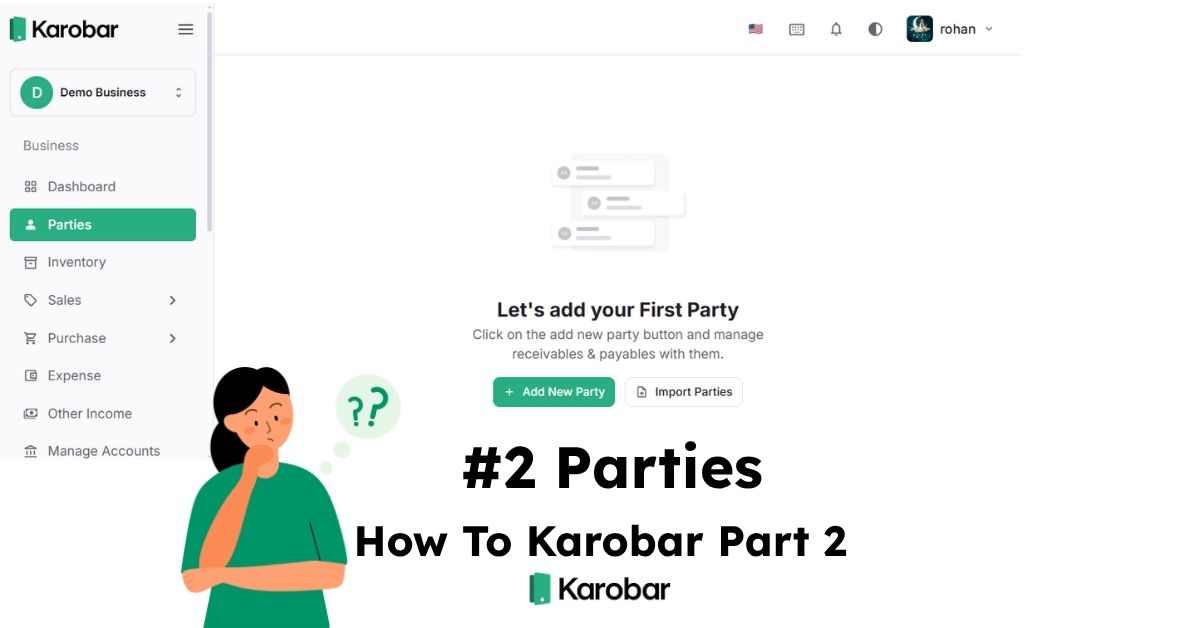
The Party section in Karobar helps you manage customers, suppliers, credit, payments, and outstanding balances in one place. You can add parties, record transactions, send reminders, and track receivables & payables easily.
What is a Party?
A Party is any person or business you deal with.
There are two types:
Customer – You will receive money
Supplier – You will give money
You can track:
Credit balance
Transactions
Payment history
Outstanding amount
Reminders
Add New Party
Go to:
Parties → Add New Party
Basic Information
Full Name – Party name
Phone Number – Contact number
Party Type
Customer
Supplier
Customer
Supplier
Credit Info (Optional)
Opening Balance
Payment Type
To Receive
To Give
To Receive
To Give
As of Date
This is useful when migrating from manual records.
Additional Info (Optional)
Address
Email
PAN Number
Upload Photo
Click Save Party
Party List Screen
Here you can see:
Party name
Phone number
Current balance
Status
Example:
Rs. 0 → Settled
Rs. 50 To Give → Payable
Rs. 100 To Receive → Receivable
Search and Filter Parties
You can filter by:
Party Type
Customer
Supplier
Payment Filter
All Payment
To Receive
To Give
Settled
You can also search using the search bar.
Party Details Screen
Inside a party you will see:
Send Reminder
Transactions
Add Transaction
Sort
Manage Party
Add Transaction
Click Add Transaction
Available options:
Sales Invoice
Purchase
Payment In
Payment Out
Quotation
Sales Return
Purchase Return
Adjust Balance
Balance updates automatically.
Transaction Types Explained
Sales Invoice
You sold items to customer
→ Balance becomes receivable
Purchase
You bought from supplier
→ Balance becomes payable
Payment In
Customer paid you
→ Receivable decreases
Payment Out
You paid supplier
→ Payable decreases
Sales Return
Customer returned items
→ Receivable decreases
Purchase Return
Returned items to supplier
→ Payable decreases
Adjust Balance
Use when you want to manually update balance.
Steps:
Click Adjust Balance
Choose type
Add Balance
Reduce Balance
Add Balance
Reduce Balance
Enter amount
Select date
Add remarks
Confirm
Sort Transactions
Sort by:
Latest
Oldest
Amount Low to High
Amount High to Low
Filter Transactions
Filter by:
All Transactions
Sales
Purchase
Payment In
Payment Out
Sales Return
Purchase Return
Quotation
Add Balance
Reduce Balance
Send Reminder
Reminder options:
Copy Message
WhatsApp
Set Reminder
Share Transaction Link
Useful for collecting payments.
Manage Party
Options available:
Edit Party
Delete Party
Note:
You cannot delete a party with transactions.
You must remove transactions first.
Party Status Meaning
Settled → No balance
To Receive → Customer owes you
To Give → You owe supplier
Payable → You need to pay
Receivable → You will receive
Party Settings
Go to:
Settings → Party Settings
Options:
Party Category
Group parties for better organization
Example:
Retail customers
Wholesale customers
Suppliers
Upload Party Image
Helps identify parties quickly
Comments
No comments yet. Be the first to comment!